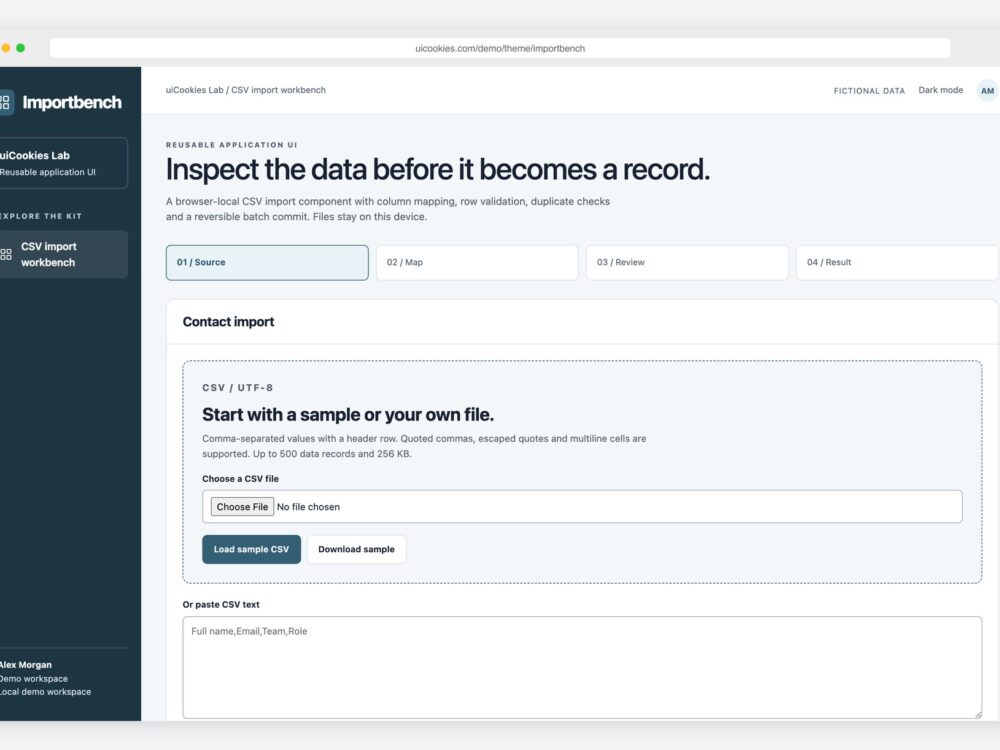
A CSV import should let someone see what will change before it changes. Importbench is a free frontend example that separates parsing, column mapping, row validation, commit and rollback. This guide walks through those states using fictional contacts.
Open the Importbench demo and load its built-in sample. The application stores demo changes in this browser. No contacts are uploaded, and the supplied template has no production database.
1. Parse CSV as records, not lines split on commas
CSV fields can contain commas, double quotes and line breaks. Splitting text on every comma or newline breaks those records. The example below is one contact even though its team name contains a comma:
Full name,Email,Team,Role
"Morgan Lee",[email protected],"Design, Research",Member
The supplied parser handles a UTF-8 BOM, quoted commas, escaped double quotes and multiline quoted values. The demo accepts CSV files up to 256 KB and 500 data rows. Use its sample download to inspect the accepted header and role values. See RFC 4180 for common CSV quoting conventions.
2. Make mapping a deliberate step
Map a source column to each target field. Full name and email are required; team and role are optional mappings. A source column can be assigned only once. This prevents accidentally feeding the email column into both email and full name.
Test the failure state by leaving email unmapped, then by choosing the same source column twice. The workflow should stay on mapping and explain the correction. A successful parse does not imply the columns mean what the application expects.
3. Review four distinct row outcomes
| Status | Meaning | Commit behavior |
|---|---|---|
| New | Valid contact with an email not already accepted | Added |
| Invalid | A required value, email, team or role fails validation | Skipped |
| Existing | Email already belongs to a contact in the local register | Skipped; the contact is not updated |
| Duplicate | A later valid row repeats an email accepted earlier in the same file | Skipped |
Try a new valid contact, a malformed email, an existing contact’s email and a repeated new email. Read the reasons in the review table. Download rejected records if you want a correction list; importing is an explicit action after review.
4. Revalidate when committing
Importbench validates again when the commit form submits, then adds only rows still marked New. Each committed batch records the IDs it created. This is a useful frontend demonstration of a final check, but browser-local state is not a database transaction or a guarantee against concurrent writers.
// Conceptual commit boundary:
const accepted = validate().filter(row => row.status === 'New');
// Create a batch, add accepted records, and retain their created IDs.
In a production importer, enforce authorization and uniqueness in the database and commit the batch in a transaction. Use an idempotency key so a retry does not create a second batch. Run the same validation on the server and return row-level errors that the review UI can display.
5. Undo only the latest import
After committing the sample, note the local contact count and batch ID. Choose Undo latest batch and confirm. Only contacts whose IDs belong to that batch should disappear. Seed records and contacts that existed before the import remain. The history marks the batch Undone.
The demo offers undo for the latest active batch, rather than an unrestricted edit history. A production rollback must also consider records changed or referenced after import; deleting by batch alone may no longer be safe. Define that policy before connecting real records.
Check exported data as well as imported data
The example quotes exported cells and prefixes formula-like values before creating CSV. That reduces spreadsheet formula interpretation for common leading characters. Test your target spreadsheet and export policy with realistic data before deployment.
For the surrounding screens, compare table components and file upload interfaces. Importbench connects those patterns into a complete staged flow.